If you saw a message saying your scan was “auto-corrected,” you successfully scanned your cube, but you likely rotated it in the wrong order.
To make your next scan faster and avoid background corrections, you can follow a simple 3-step sequence. This path is designed to minimize the number of turns required. You do not need to memorize these moves, as our interactive 3D guide will show you exactly how to turn the cube at each step. You just need to start with the correct orientation.
1. The Ideal Starting Position
Before you begin the scan, hold your cube in this position:
- White on Top: The White center faces up toward the ceiling.
- Green in Front: The Green center faces directly at you.
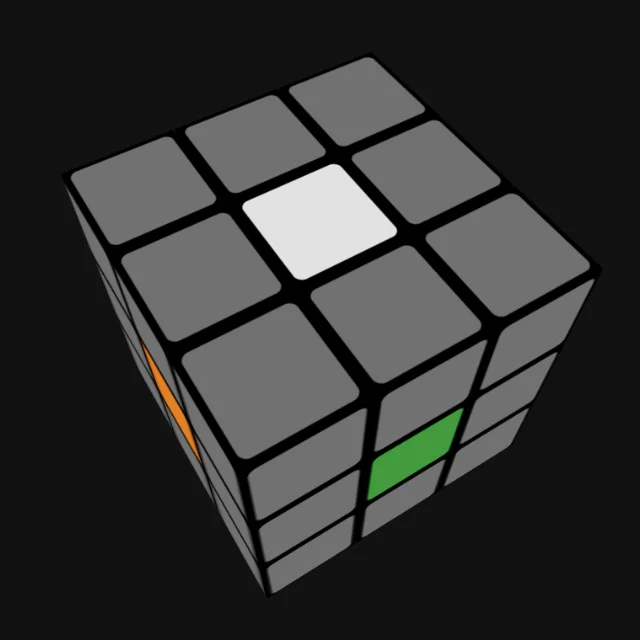 Your starting position: White center up, Green center facing you.
2. The 3-Step Scan Sequence
Once you are in the starting position, watch this quick video to see the most efficient way to rotate the puzzle.
Remember, there is no need to memorize this sequence. The app displays an interactive 3D digital guide on your screen to prompt your next move.
Keep your turns simple and avoid random twisting.
Here is the exact sequence demonstrated in the video:
- The First Tilt: Scan the White top side. Then, tilt the cube down to scan the Green front side.
- The Carousel: Keep the cube upright and spin it in one direction. This allows you to scan the middle sides in sequence: Red, then Blue, then Orange.
- The Final Tilt: Tilt the cube to reveal the bottom Yellow side for your final scan.
Watch a Full Live Demo
Need a longer explanation? We put together a quick video that explains how the cube’s centers work and includes a complete, real-time scan-to-solve demonstration (the live scan demo starts at 1:02).
Watch this Short directly on YouTube
Top Mistakes to Avoid
If your scan requires a rotation rescue correction, it is usually due to one of these common mistakes:
- Random Twisting: Changing your hand placement or rolling the cube randomly breaks the real-time camera tracking.
- Wrong Start: Starting with a color other than White on top and Green in front.
- Sideways Scanning: Scanning a side at an angle, which confuses the math that identifies the corner positions.
What Does “Scan Auto-Corrected” Mean?
When you turn the cube in an unexpected direction or scan a side upside down, the digital layout becomes mathematically invalid.
Instead of forcing you to restart the scan from the beginning, our solver runs an algorithm in the background to make the cube solvable.
While this auto-correction is a helpful safety net, it requires extra processing. Following the guided sequence is faster, more reliable, and ensures more accurate color recognition.