Scanning a Rubik’s Cube with your phone camera used to mean following strict step-by-step flips and keeping track of which sides were already scanned.
That is why we just launched Live AR Scan.
Instead of locking you into a fixed rotation order, Live AR Scan tracks your cube in real time and lets you turn it freely in any direction. Early results from the first week are already clear: first-time scan success jumped from around 50% to 80%, and the fastest scan times on our leaderboard dropped by more than half.
Live AR Scan vs. Guided Camera Scan
You can choose between two camera modes inside the solver, depending on your phone and your needs:
- Live AR Scan: Easy to use. Needs a fast phone and good light.
- Guided Camera Scan: Catches twisted corners better. Works on all devices.
Guided Camera Scan is still a great choice if you have an older phone. It is heavily optimized for speed and low resource use, so it runs reliably even on very old devices while guiding you one side at a time.
Live AR Scan brings a more flexible experience for modern phones. Since launching a week ago, we have shipped several small updates based on real user scans, and first-time completion already sits around 80%.
How Live AR Scan Works
Instead of capturing one flat face at a time, Live AR Scan reads 1 to 3 sides at once while you rotate the cube naturally in your hands.
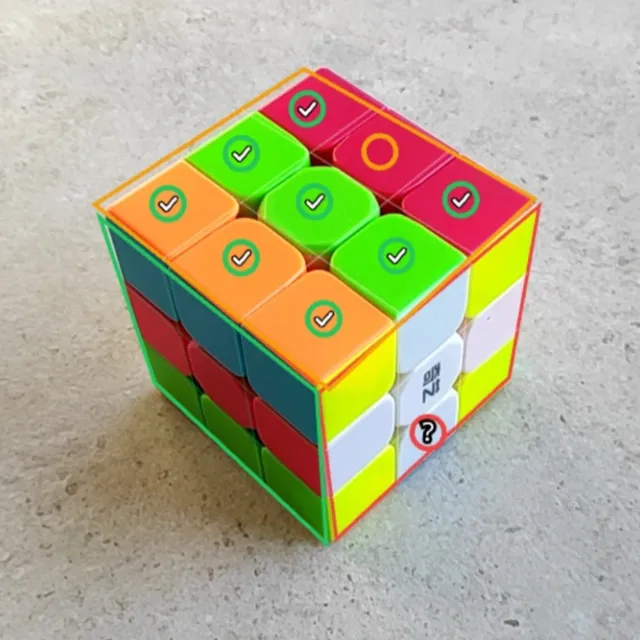
It takes multiple shots per second and automatically picks the clearest frames to lock in each sticker. On-cube AR hints make the rest effortless:
- Scan in any direction: Turn the cube freely without memorizing a strict sequence.
- Question mark (
?) stickers: Any sticker that still needs a clear view shows a?right on the 3D cube, so you know the exact spot to tilt toward the camera. - Live rotation hints: Arrows on the cube guide you toward any missing sides.
If a sticker ever reads as the wrong color under mixed indoor bulbs, our guide on fixing wrong colors in a Rubik’s Cube scanner explains how lighting affects cameras and how our color detection handles it.
Scan From a Video File (Processed Locally)
Live AR Scan also works without a live camera. You can upload a video recording of a cube and scan it using the exact same engine.
All processing happens locally in your browser, so your video never leaves your device. It is a handy shortcut when you want to solve or inspect a cube from someone else’s clip without entering colors manually.
- If the scanner misses a few stickers at normal speed, it automatically slows playback to 0.5x and 0.25x so it can read more frames and catch clean shots.
- Once the clip finishes, you either get the complete scanned cube or jump straight into Paint My Cube with every recognized sticker already filled in, ready to finish in seconds.
Top Scan Times Dropped to 5 Seconds
We did not expect the speed boost to show up on our global leaderboard quite this fast.
Curious who else is playing? Watch cubes being solved live on the 3D world map.
Before Live AR Scan launched, the top 10 fastest scans on the map sat between 12 and 17 seconds. Right after launch, those top 10 times dropped to 5.0 to 11 seconds.
Why WebGPU and FPS Matter
Live AR Scan runs AI tracking on your phone’s graphics chip using WebGPU. Because it captures multiple shots every second, higher frame rates make scanning much faster:
- Older phones (like our Qualcomm SDM845 test device): Around 6 FPS. Still usable, just turn the cube a bit slower.
- Modern phones: 40 FPS and higher, giving the scanner plenty of crisp frames every second.
Around 75% of users already have WebGPU enabled in their browser. If the solver tells you WebGPU is off, you can usually enable it in under two minutes with our guide: WebGPU Not Working? Fix It in 2 Minutes.
If your device does not support WebGPU, Guided Camera Scan is ready to go and runs smoothly on almost every phone.
Watch Out for Low Light
The number one reason first-time Live AR Scans struggle today is low light. Dim rooms blur sticker edges and cause orange, red, white, and yellow tiles to blend together.
For the fastest scan:
- Move near a window or a bright lamp.
- Tilt slightly if you see shiny white glare on a tile.
- Follow the
?markers until all six faces lock in.
Want more tips on ideal distance and lighting? Check out How to Scan Your Rubik’s Cube: What Works and Why.